


As communication becomes more Web-centric, text editors become moreessential writing tools. Blocks of text get tweaked with HTML codes toprovide a more graphical appearance. So good text editors are thosewith many of the same features found in word processors, only withoutthe added formatting and graphic components.
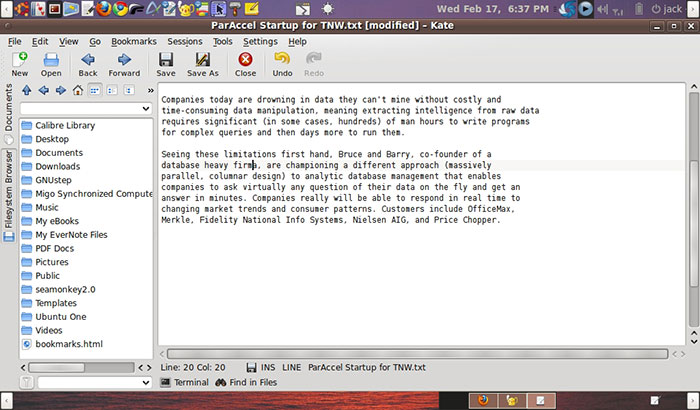
One of the best text editors for anyone who handles a heavy flow ofwords is the Kate Text Editor. Thisis one my two favorite text-writing apps. (The other is Geany TextEditor.) Unless I need afinal copy in a polished printout, Kate is a more convenient choicethan a full-fledged word processor.
Kate is a multi-document editor that grew from a rewritten version ofthe KWrite editing widget of the KDE desktop. Even if you run the morestandard Gnome desktop in your Linux distro, Kate runs just fine. Thefew required KDE libraries that Kate needs are bundled in theinstallation package.
Kate 101
The Kate project developed two main products. One is KatePart, whichis an advanced editor component used in numerous KDE applicationscalling for a text editing tool. The second is Kate itself.
This native KDE application is a handy tool for viewing HTML sources,editing configuration files, writing code or any other text-basedtask. Kate is released under the GNU Lesser General Public License(LGPL) Version 2.
I’m partial to multi-view editors like Kate. They carry a good deal ofadvantages. In my case, I can view several synced instances of thesame document as I work. I can also see more open documents for easyreference or simultaneous editing.
Panel Pleasure
One of the most critical features for me is Kate’s ability to displayan index of files as a sidebar. I often work with several note filesand documents opened simultaneously. Being able to see a list of filesand click on titles to switch from one to the other is veryconvenient.
A companion feature is the File System Browser panel. Access to bothcomes with clicking the vertical tab along the left edge of thescreen. Of course, I can open files with the Open icon on the toolbar. Also, I can click on a file in a file manager app and open itwith the Kate option. However, Kate’s built-in file browser makes theseother options more cumbersome.
Kate’s ability to show split files in side-by-side and top-to-bottomfashion is a must-have feature for my work routine. In fact, with somuch flexibility provided in screen display with Kate, the only thing I use text editorswithout this ability for are quick scratch-pad tasks.
Other Goodies
Having a spell checker built into a text editor is a rarity. The factthat Kate has one can be a deal-maker for anyone looking for afull-featured text editor. Unlike the spell checking feature in wordprocessors, Kate’s spelling feature does not underscore misspellingsas I type, but it does give me two options. One is to spell check theentire document, offering options for corrections for each flaggedword in the document. I can also select from the same drop-down toolsmenu spelling options for a word under the cursor.
Spend some time picking your way through the menus in Kate. Numerousfeatures to assist code writers and programmers are packed in thechoices. For example, Kate includes code and text folding plusencoding support such as utf-8, utf-16, ascii, etc. Kate can alsoconvert encoding. There is also wide protocol support for HTTP, FTP,SSH, WebDAV, etc.
Find the options that make your particular writing tasks easier. Forinstance, Kate has options to set auto indentation, auto completion,block selection, syntax highlighting and bracket matching. It is ahefty list. So Ignore what you do not need.
Unique Option
Kate has a search and find feature that I have not found in otherfeature-packed text editors or word processors. It has made myresearching much easier. I work with several open files withinformation gleaned from Internet research and interview notes. Katemakes finding what I need a whole lot easier.
This option lets me place a search window at the bottom of each filewindow. I can enter a word or phrase and whatever filtering optionsneeded to focus the search. Kate pulls up a list of any document onthe hard drive that contains that information. If the file is notalready opened, I can click on the listing to open it.
How cool is that? Not having to go outside the text editor to a searchapp to locate information is a huge time-saver in my content research.Clicking the Find in Files tab at the bottom of the screen turns thisfeature on or off.
Convenience Counts
Anyone who is familiar with word processing programs and text editorscan get up to speed very fast with Kate. All of the basic navigationaltools and expected app options are easy to find. As your comfort levelrises, it is easy to find useful tools to expand your writingenvironment within Kate.
The Kate Text Editor has a lot to offer. I usually send open sourcecommunities a wish list of features I’d like added to applicationsthat I use. I have not been able to do that with Kate. I cannot thinkof a single enhancement to make my writing life easier that is notalready a part of the Kate experience.









 Loading ...





















What features are in Kate that are not in emacs? Please keep in mind that similar features might be implemented slightly, or vastly different in the two editors. I wish I had more time today to compare the technical details here myself, but I would be inclined to think in a side by side comparison, emacs would prevail.